Smart Spam Detection
Gaivota includes a built-in machine learning spam detector that learns from your actions.
How It Works
The spam detector uses a Naive Bayes classifier that learns from:
- Emails you mark as junk/spam
- Senders you block
- Emails you manually label
Over time, it becomes better at identifying spam specific to your inbox.
Enabling Spam Detection
- Open Settings (
⌘,) - Go to the Spam tab
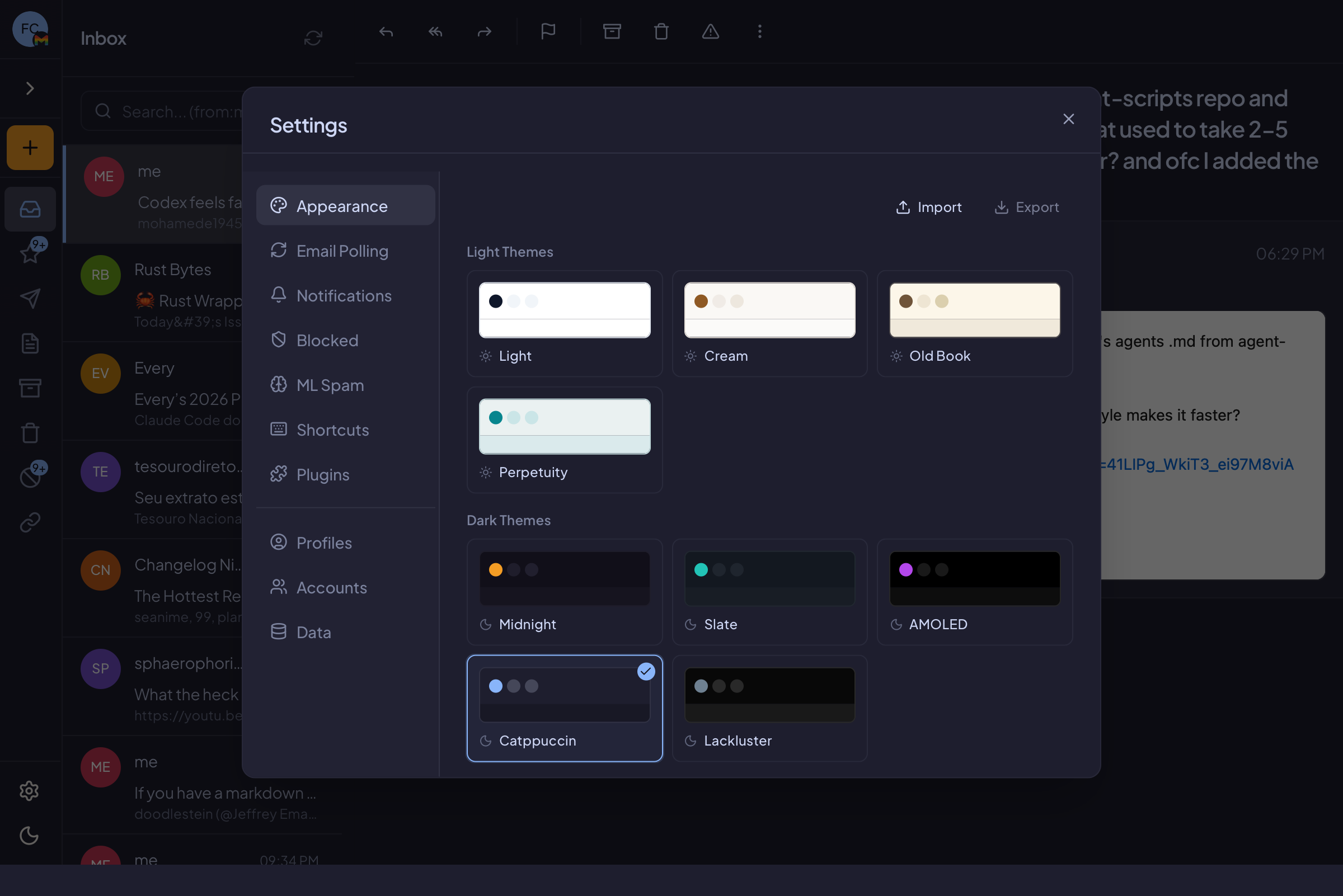
- Toggle Enable ML Spam Detection on
Training the Model
The spam detector needs training data to work effectively.
Automatic Training
Training data is collected automatically when you:
- Mark emails as spam (
!) - Block a sender
- Move emails to the Junk folder
Minimum Training Examples
By default, the detector needs at least 10 spam examples and 10 non-spam examples before it activates.
You can adjust this in Settings → Spam → Minimum Training Examples.
The more examples you provide, the more accurate the detection becomes.
Spam Confidence
When the detector identifies potential spam, it calculates a confidence score.
Viewing Confidence
Enable Show Spam Confidence in Settings to see the spam probability on suspected emails.
Emails show a badge like "87% spam" to help you decide.
Confidence Threshold
Only emails above a certain confidence threshold are flagged. This prevents false positives.
Auto-Confirm Junk
When enabled, if you delete an email that was flagged as spam, Gaivota automatically confirms it as junk.
This helps train the model without extra clicks.
Enable in Settings → Spam → Auto-confirm junk on delete.
Per-Account Models
Each email account has its own spam model.
This is important because:
- Work emails have different spam patterns than personal
- Different accounts receive different types of messages
- Training is more accurate when account-specific
Collect Training Data
To enable training data collection:
- Go to Settings → Spam
- Enable Collect Training Data
This allows Gaivota to save email features (not content) for training.
Managing the Model
Viewing Model Status
In Settings → Spam, you can see:
- Number of training examples
- Model accuracy (if available)
- Last training date
Retraining
The model retrains automatically as you add new examples.
Resetting the Model
To start fresh:
- Go to Settings → Spam
- Click Reset Spam Model
This clears all training data for the current account.
Tips for Better Detection
- Be consistent: Always mark spam as spam
- Don't skip: Mark all obvious spam, not just some
- Correct mistakes: If a good email is flagged, mark it as "Not Spam"
- Use blocking: Block persistent spam senders
- Give it time: Accuracy improves with more training data
Privacy
The spam detector:
- Runs entirely on your computer
- Never sends email content to external servers
- Only stores feature vectors, not email text
- Uses vocabulary-based features for classification
Your email content stays private and local.