Gaivota is designed for keyboard-first usage. Master these shortcuts to fly through your email.
Quick Reference
Press ? at any time to see the shortcut help overlay.
Navigation
| Shortcut | Action |
|---|
j | Next email (down) |
k | Previous email (up) |
o or Enter | Open/focus email |
u | Back to list |
Ctrl+B | Page up (older) |
Ctrl+F | Page down (newer) |
Folder Navigation
Press g followed by a folder key:
| Shortcut | Destination |
|---|
g i | Inbox |
g d | Drafts |
g s | Sent |
g a | Archive / All Mail |
g j | Junk / Spam |
g t | Trash |
Account Switching
| Shortcut | Action |
|---|
1 | Switch to account 1 |
2 | Switch to account 2 |
3 - 9 | Switch to accounts 3-9 |
Composing
| Shortcut | Action |
|---|
c | Compose new email |
r | Reply to sender |
a | Reply to all |
f | Forward email |
⌘+Enter | Send email |
⌘+S | Save draft |
Escape | Close compose (prompts to save) |
Email Actions
| Shortcut | Action |
|---|
e | Archive |
# | Delete |
! | Mark as spam |
s | Toggle flag/star |
Shift+I | Mark as read |
Shift+U | Mark as unread |
z | Undo last action |
Selection
| Shortcut | Action |
|---|
x | Toggle selection |
* a | Select all |
* n | Deselect all (none) |
* r | Select all read |
* u | Select all unread |
Search
| Shortcut | Action |
|---|
/ | Open search |
Escape | Close search |
Utility
| Shortcut | Action |
|---|
? | Show keyboard shortcuts help |
⌘, | Open Settings |
[ | Toggle sidebar |
| Shortcut | Format |
|---|
⌘+B | Bold |
⌘+I | Italic |
⌘+U | Underline |
⌘+K | Insert link |
Gmail-Style Shortcuts
If you're coming from Gmail, you'll find most shortcuts familiar:
| Gmail | Gaivota | Action |
|---|
j / k | j / k | Navigate |
o | o | Open |
u | u | Back |
c | c | Compose |
r | r | Reply |
a | a | Reply all |
f | f | Forward |
e | e | Archive |
# | # | Delete |
! | ! | Spam |
/ | / | Search |
? | ? | Help |
Customizing Shortcuts
You can customize keyboard shortcuts:
- Open Settings (
⌘,)
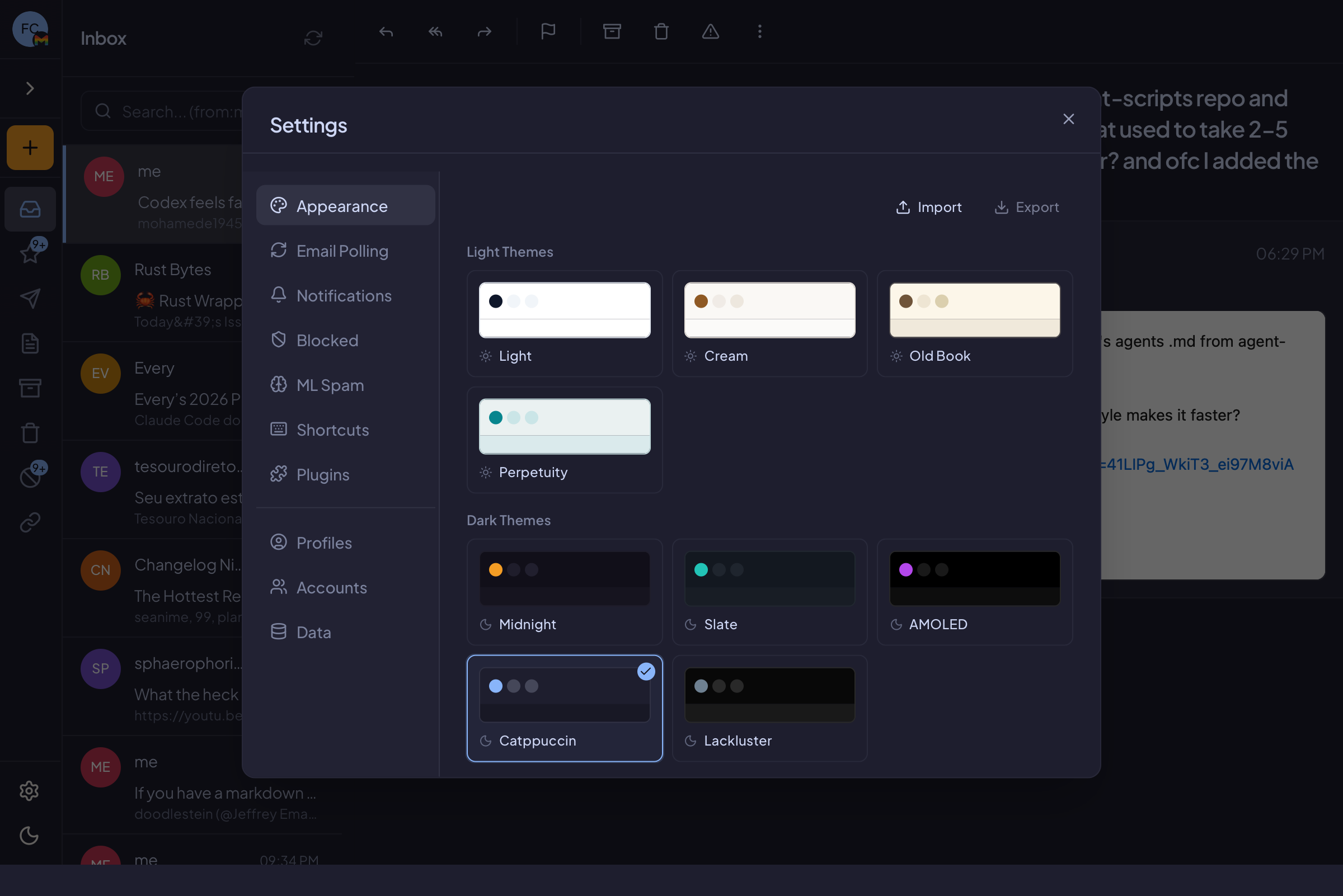
- Go to Shortcuts tab
- Click on any shortcut to change it
- Press your desired key combination
- Click Save
Resetting Defaults
To reset all shortcuts to defaults:
- Go to Settings → Shortcuts
- Click "Reset to Defaults"
Tips
Learning Shortcuts
- Start with
j, k, o, u for navigation
- Add
e (archive) and c (compose)
- Build up to folder navigation (
g i, g a, etc.)
- Use
? when you forget a shortcut
Muscle Memory
The more you use shortcuts, the faster you'll get. Try to avoid using the mouse for a day - you'll be surprised how quickly you adapt.
Multi-Key Shortcuts
Some shortcuts use multiple keys in sequence (like g i for Go to Inbox):
- Press the first key (
g)
- Quickly press the second key (
i)
- If you wait too long, the sequence resets