Interface Overview
Gaivota's interface is designed for efficiency, with a familiar layout and powerful keyboard shortcuts.
Main Window Layout
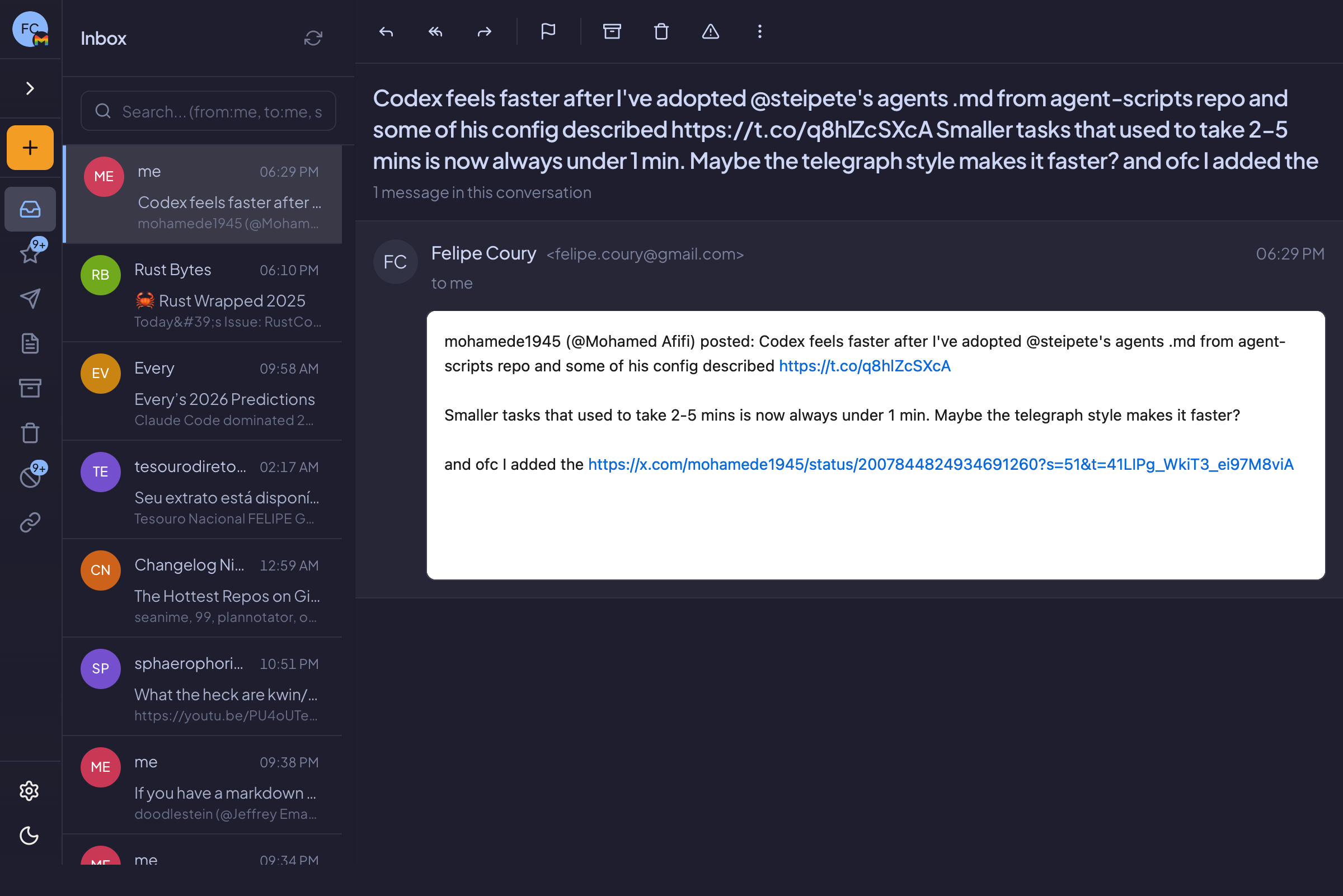
The main window is divided into three resizable panes:
┌──────────────┬─────────────────────┬────────────────────────┐
│              │                     │                        │
│   Sidebar    │    Email List       │    Email Detail        │
│              │                     │                        │
│  • Accounts  │  • Subject          │  • Full message        │
│  • Folders   │  • Sender           │  • Thread view         │
│  • Virtual   │  • Preview          │  • Attachments         │
│    Folders   │  • Date             │                        │
│              │                     │                        │
└──────────────┴─────────────────────┴────────────────────────┘
Sidebar
The left sidebar contains:
- Account List: All connected email accounts
- Folder Tree: Standard folders (Inbox, Sent, Drafts, Archive, Junk, Trash)
- Virtual Folders: Custom plugin-powered folders
Click on any folder to view its contents. The number badge shows unread messages.
You can collapse the sidebar by clicking the toggle button or pressing [.
Email List
The center pane shows emails in the selected folder:
- Subject: Email subject line
- Sender: Who sent the email
- Preview: First line of the email body
- Date: When the email was received
- Flags: Read/unread, flagged, attachments
Use j and k to navigate up and down the list.
Email Detail
The right pane shows the selected email:
- Header: Sender, recipients, subject, date
- Body: Full email content with formatting
- Attachments: File attachments with download options
- Thread: Related emails in the conversation
Press o or Enter to focus on an email, u to go back.
Resizing Panes
All three panes are resizable. Drag the dividers between panes to adjust their width.
Your layout preferences are saved and restored when you reopen Gaivota.
Thread View
When you select an email that's part of a conversation, Gaivota shows the entire thread:
- All related emails are grouped together
- Newest messages appear at the bottom
- Click on any message in the thread to expand it
Compose Window
Press c to open the compose window:
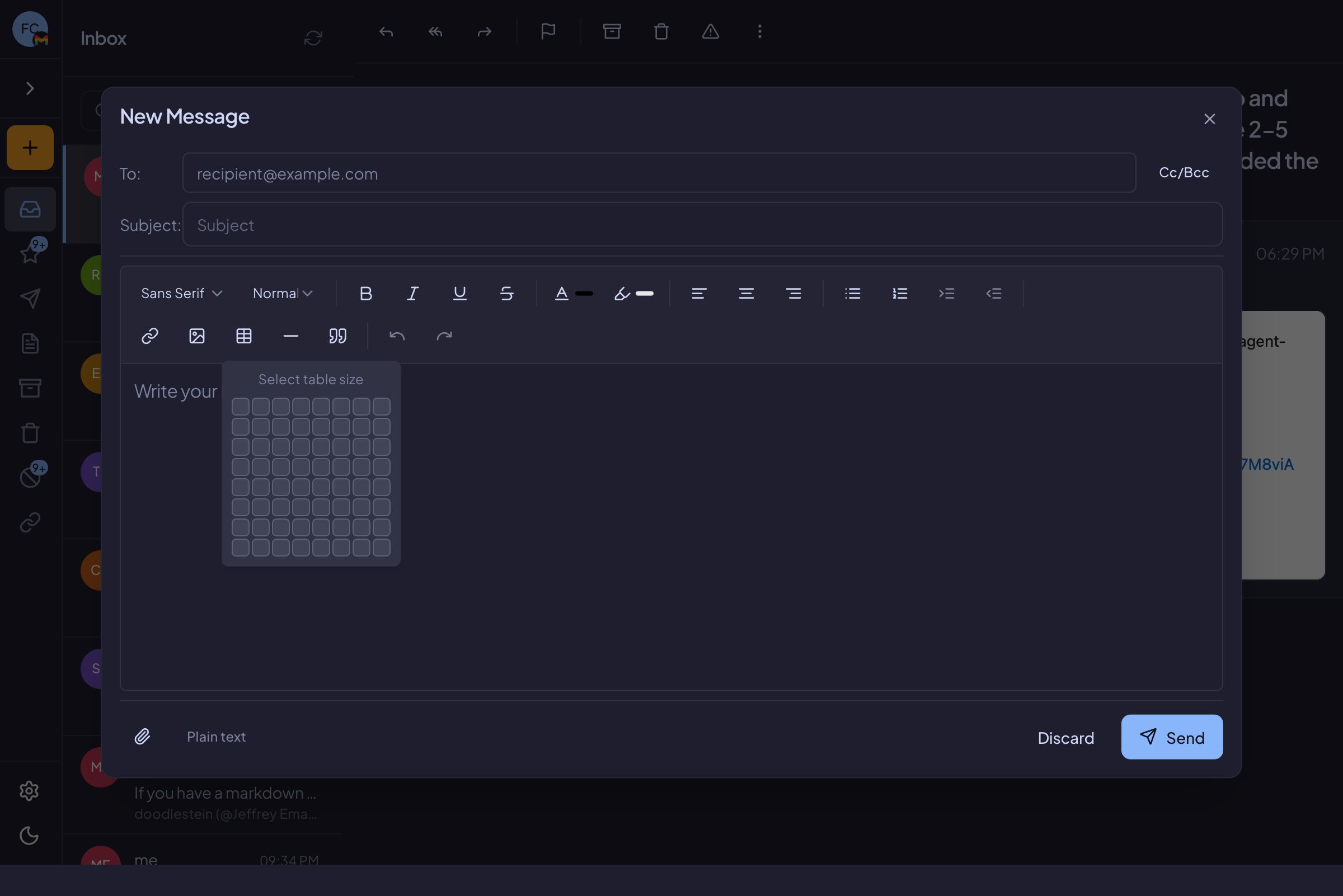
- To: Recipients (with autocomplete)
- Cc/Bcc: Additional recipients
- Subject: Email subject
- Body: Rich text editor with formatting toolbar
The compose window supports:
- Bold, italic, underline, text color
- Bullet and numbered lists
- Tables
- Images and attachments
- Links
Press ⌘+Enter to send.
Settings Dialog
Press ⌘, (Cmd+Comma) to open Settings:
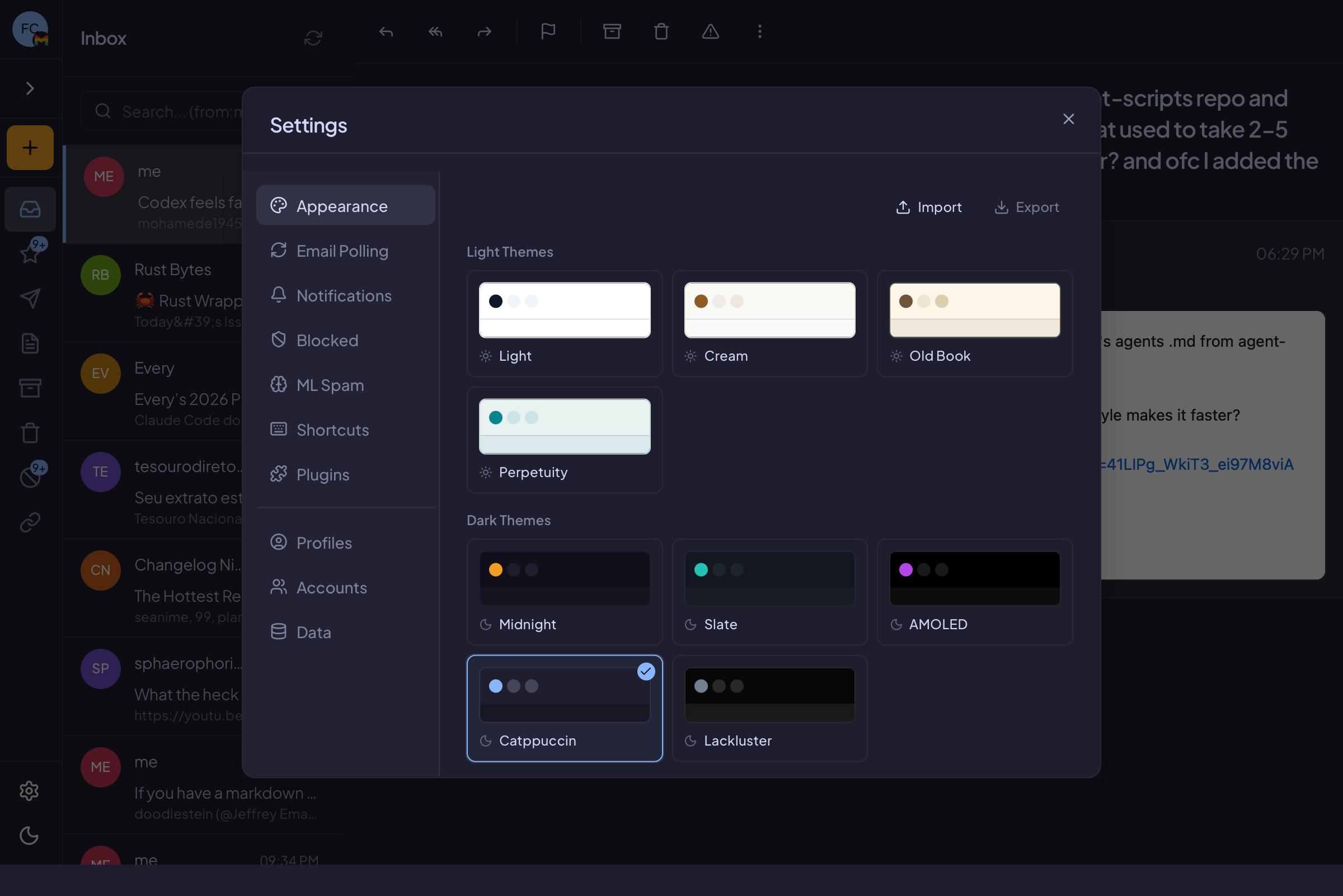
| Tab | Contents |
|---|---|
| General | Polling interval, notifications |
| Accounts | Connected accounts, per-account settings |
| Appearance | Theme selection, dark mode |
| Spam | ML spam detection settings |
| Blocked | Blocked senders list |
| Shortcuts | Keyboard shortcut customization |
| Plugins | Installed plugins |
| Profiles | Profile management |
Keyboard-First Design
Gaivota is designed for keyboard users. Nearly every action has a shortcut:
| Action | Shortcut |
|---|---|
| Navigate emails | j / k |
| Open email | o or Enter |
| Go back | u |
| Compose | c |
| Reply | r |
| Reply All | a |
| Forward | f |
| Archive | e |
| Delete | # |
| Mark spam | ! |
| Search | / |
| Settings | ⌘, |
| Help | ? |
See Keyboard Shortcuts for the complete reference.