Composing Email
Gaivota's compose window makes it easy to write and format emails.
Creating a New Email
Press c to open a new compose window.
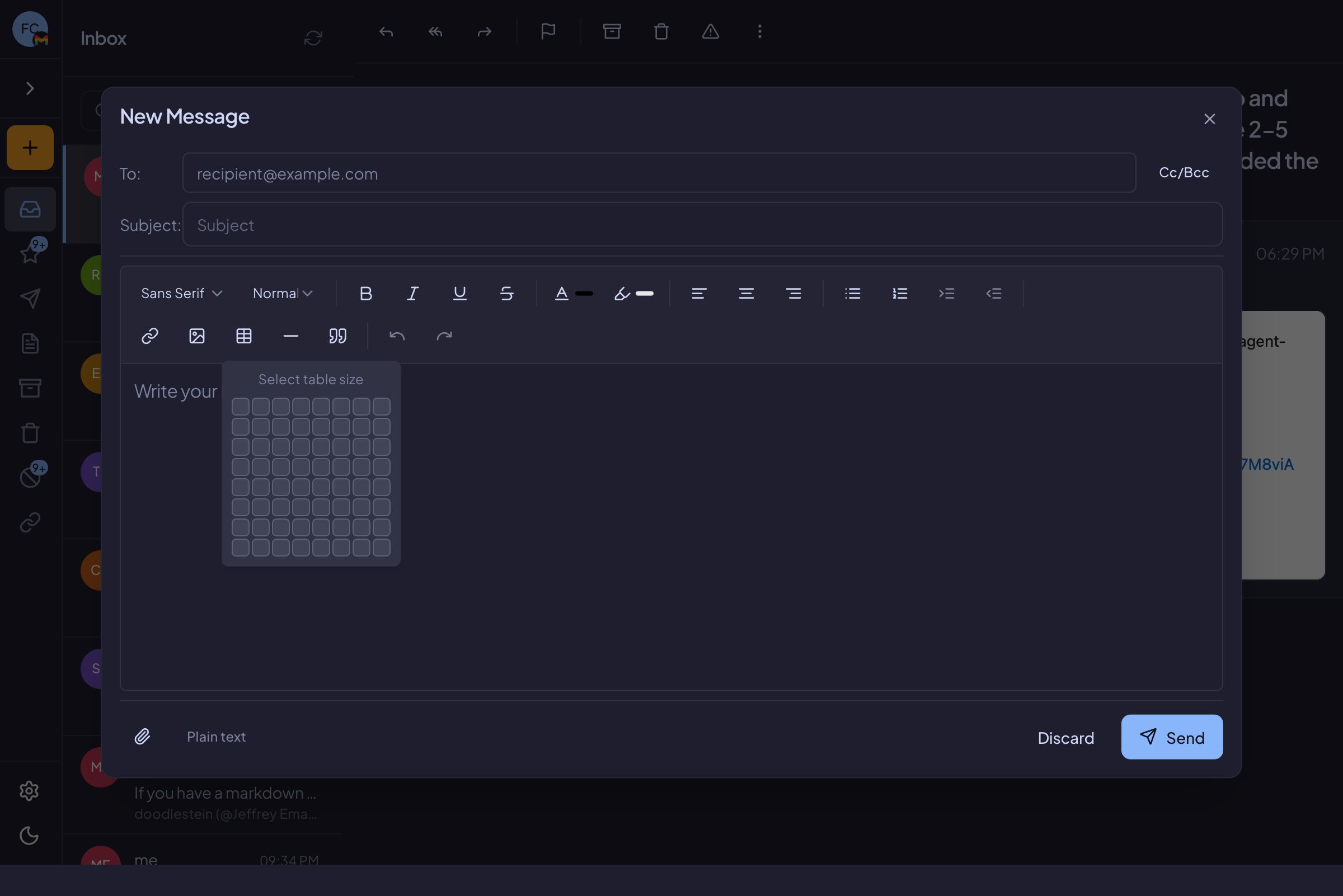
Fill in the fields:
- To: Type recipient email addresses (autocomplete will suggest contacts)
- Subject: Enter a subject line
- Body: Write your message
Adding Recipients
As you type in the To field, Gaivota suggests contacts based on:
- Your previous recipients
- Email addresses from your accounts
Press Tab or Enter to select a suggestion.
To add multiple recipients, separate them with commas or press Enter after each one.
Cc and Bcc
Click "Cc" or "Bcc" to reveal those fields:
- Cc: Carbon copy - recipients can see each other
- Bcc: Blind carbon copy - recipients are hidden from each other
Replying to Emails
| Shortcut | Action |
|---|---|
r | Reply to sender |
a | Reply to all recipients |
f | Forward email |
When replying:
- The To field is pre-filled
- The subject includes "Re:" prefix
- The original message is quoted below your reply
Reply All
Press a to reply to everyone on the email (sender and all recipients). Use this for group conversations.
Forward
Press f to forward an email. The original message is included, and you can add your own comments above it.
Rich Text Formatting
The compose window includes a formatting toolbar:
| Tool | Description |
|---|---|
| B | Bold text |
| I | Italic text |
| U | Underlined text |
| A (color) | Text color |
| List | Bullet list |
| Numbers | Numbered list |
| Link | Insert hyperlink |
| Table | Insert table |
| Image | Insert image |
Text Formatting
Select text and click a formatting button, or use shortcuts:
| Shortcut | Format |
|---|---|
⌘+B | Bold |
⌘+I | Italic |
⌘+U | Underline |
Creating Lists
Click the bullet or numbered list button to start a list. Press Enter for new items, Enter twice to exit the list.
Inserting Tables
- Click the table button
- Select the number of rows and columns
- Fill in the cells
Tables are useful for structured information like schedules or comparisons.
Adding Links
- Select the text you want to link
- Click the link button (or press
⌘+K) - Enter the URL
- Press Enter to confirm
Adding Attachments
To attach files:
- Click the attachment button (paperclip icon)
- Select files from your computer
- Files appear below the compose area
Or drag and drop files directly into the compose window.
Inserting Images
For images that appear inline in your email (not as attachments):
- Click the image button
- Select an image file
- The image appears in your email body
Sending Email
When you're ready to send:
- Press
⌘+Enter(Ctrl+Enter on Windows/Linux) - Or click the Send button
Before Sending
Review your email for:
- Correct recipients
- Appropriate subject line
- Any missing attachments (if you mentioned one)
Saving Drafts
Gaivota automatically saves drafts as you type.
To manually save a draft:
- Press
⌘+S - Or close the compose window - you'll be prompted to save
Find your drafts in the Drafts folder (g d to navigate there).
Discarding a Draft
To discard without saving:
- Close the compose window
- Click "Discard" when prompted
Or press Escape and confirm.
Tips
Writing Effective Emails
- Keep subject lines clear and specific
- Get to the point quickly
- Use formatting sparingly
- Proofread before sending
Keyboard Efficiency
Stay in flow with these shortcuts:
- Press
cto compose - Type recipient (use autocomplete)
- Press
Tabto move to Subject - Press
Tabto move to Body - Write your message
- Press
⌘+Enterto send